
Download Texture
Get the latest beta build from the download page.
Welcome to the beta
Texture is currently in beta. We're actively working on the app and will be adding new features and improvements regularly.
Supported DAWs and Operating Systems
Supported operating systems and DAWs:
- macOS: Apple Silicon.
- Windows: Windows 10 x64, 22H2 or later.
- Ableton: Live 11 or later. Live 10 is supported without MIDI writing abilities.
- Logic Pro: 11.0 or later.
- FL Studio is not yet supported.
Current app limitations
To make sure we get the core elements working right, this first version of the beta has been kept intentionally limited. This version can:- Write and read MIDI from the DAW
- Answer questions or give recommendations based on musical context
- Run up to 2 parallel edits
- Create up to 3 new tracks at a time
- Edit existing plugins
- Process audio music input
- Talk via voice control
We cannot currently:
- Edit audio regions
- Add plugins
- Assign sounds to tracks
Slated for the next release
The next release will add the following features:
- Control playback and recording
- Answer highly specific DAW-related questions
- Add new plugins
- Run up to 4 parallel edits
Ableton Live
Link Texture to Ableton
To link the app to Ableton, open the settings windows via the button in the top right corner of the app.

From here, click "DAW" on the left side of the settings window, and click "Update Remote Script"
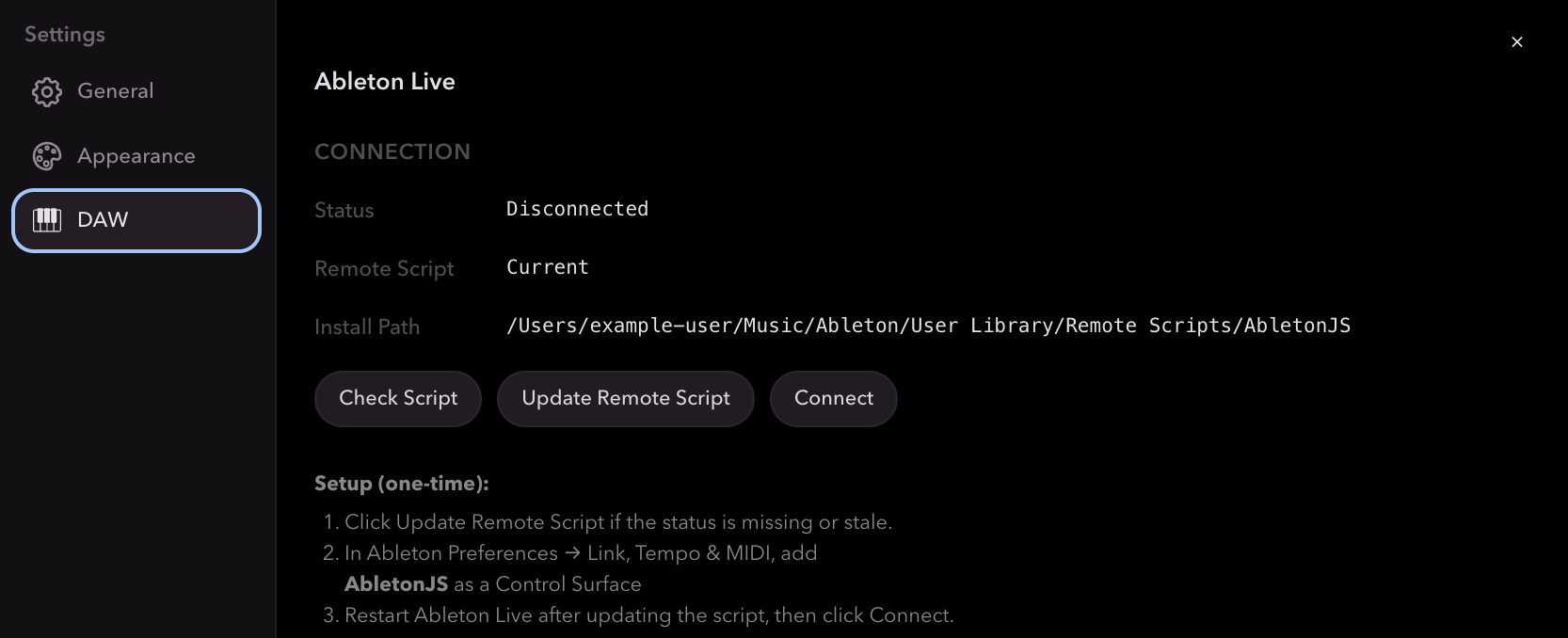
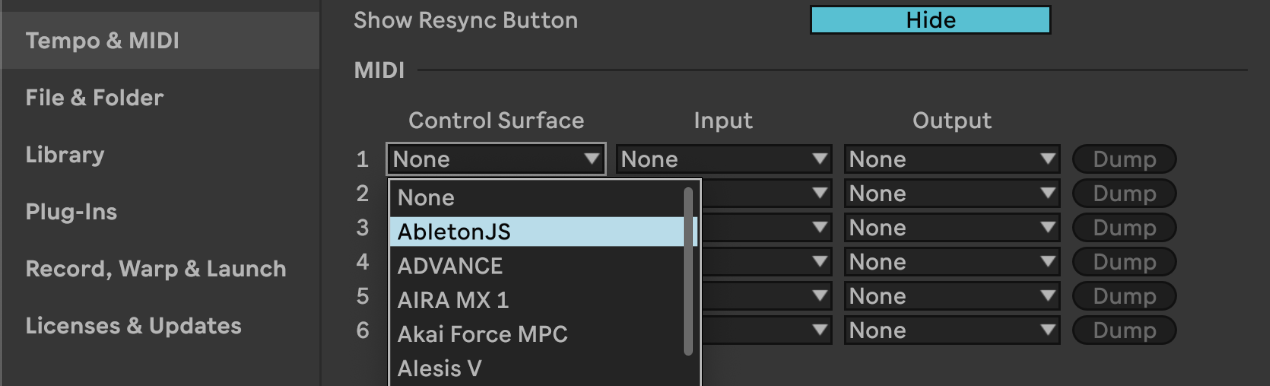
Reopen Ableton Live, and enter Live's settings window. Click "Tempo & MIDI" on the left side of the settings window. Select any of the available control surfaces, and reassign it to "AbletonJS." Leave input and output as "None."
How to use Texture in Ableton
Texture understands natural requests. Asking a theory question, requesting an edit, or both, all happens by typing in the message box.
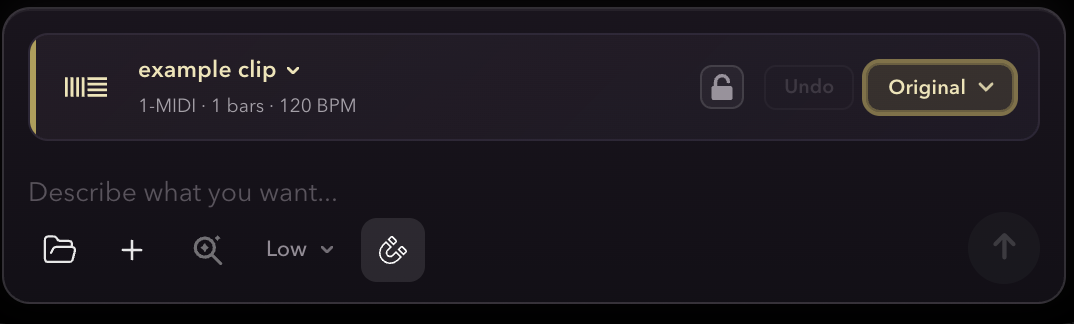
To avoid making undesired edits, the app reads and writes from the currently opened clip in Ableton (as shown in the bottom bar).
To edit or ask about a non-selected clip, either open the other clip in Ableton or use the clip picker.
Texture can only edit clips with at least one note in them.
Most of the time, typing things like "transpose this part" will automatically execute edits, but sometimes we'll ask permission for things like creating new tracks. This can be disabled in the app settings.
Your first Ableton session
Open Live to any project, and select a clip (session or arrangement view). By default, whichever clip is open in the app updates the selected clip in Texture.
You can also manually select a clip via the clip picker, accessed by clicking on the selected clip's name.
Clicking on the lock button will prevent this choice from being overrided by the selected clip in Live.
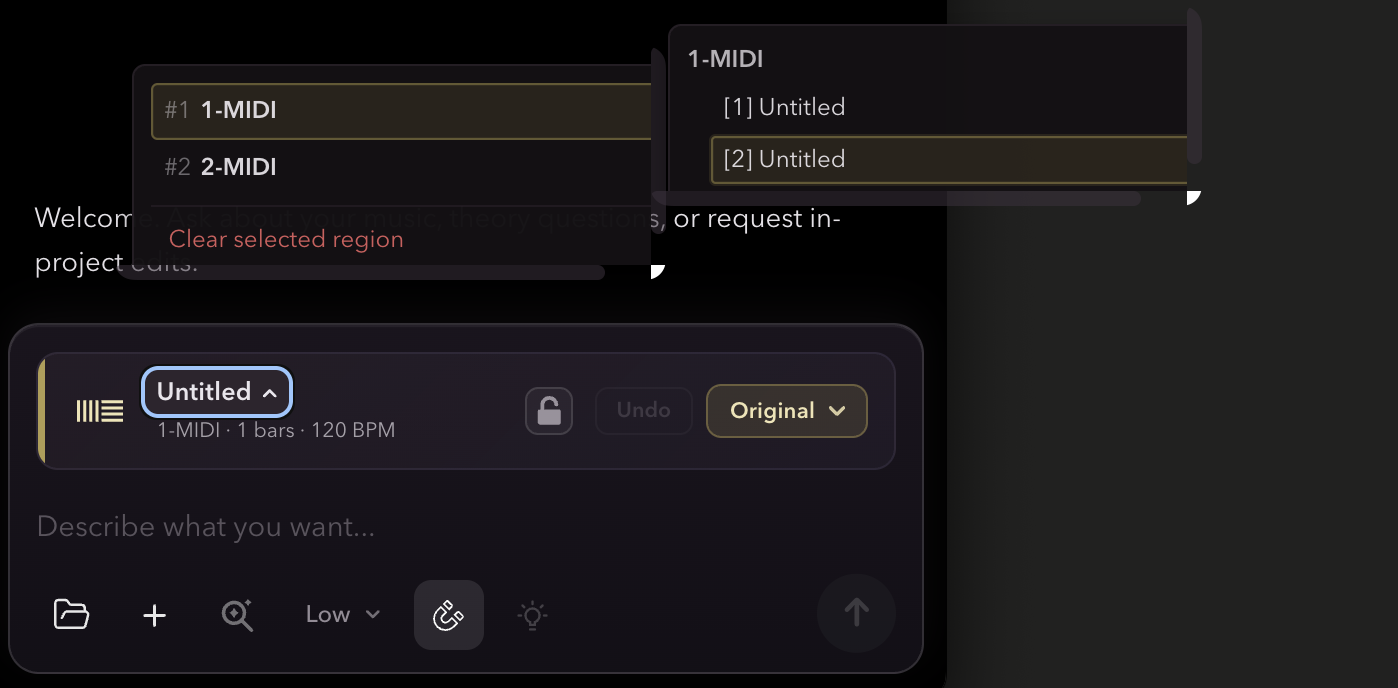
You can also upload your own MIDI file or an audio file (which will be converted into MIDI) via the folder icon on the bottom left.
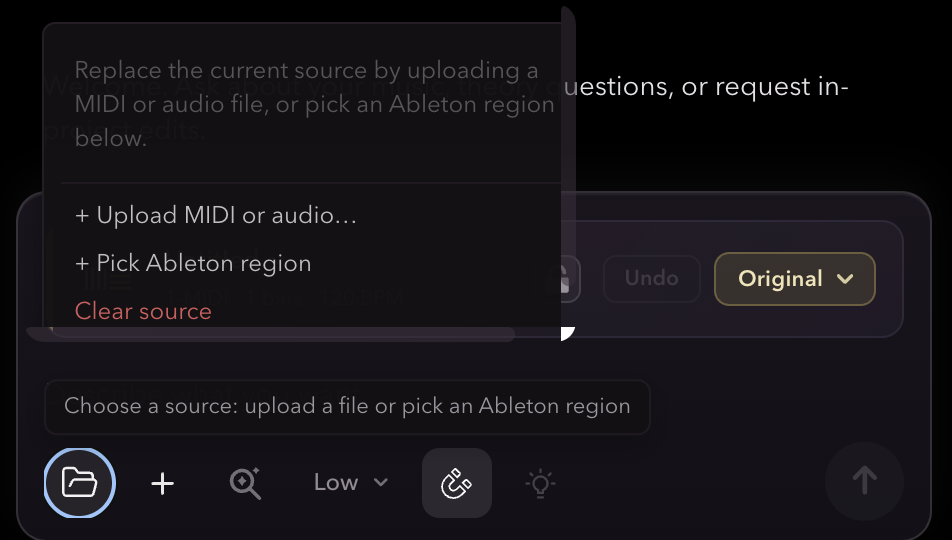
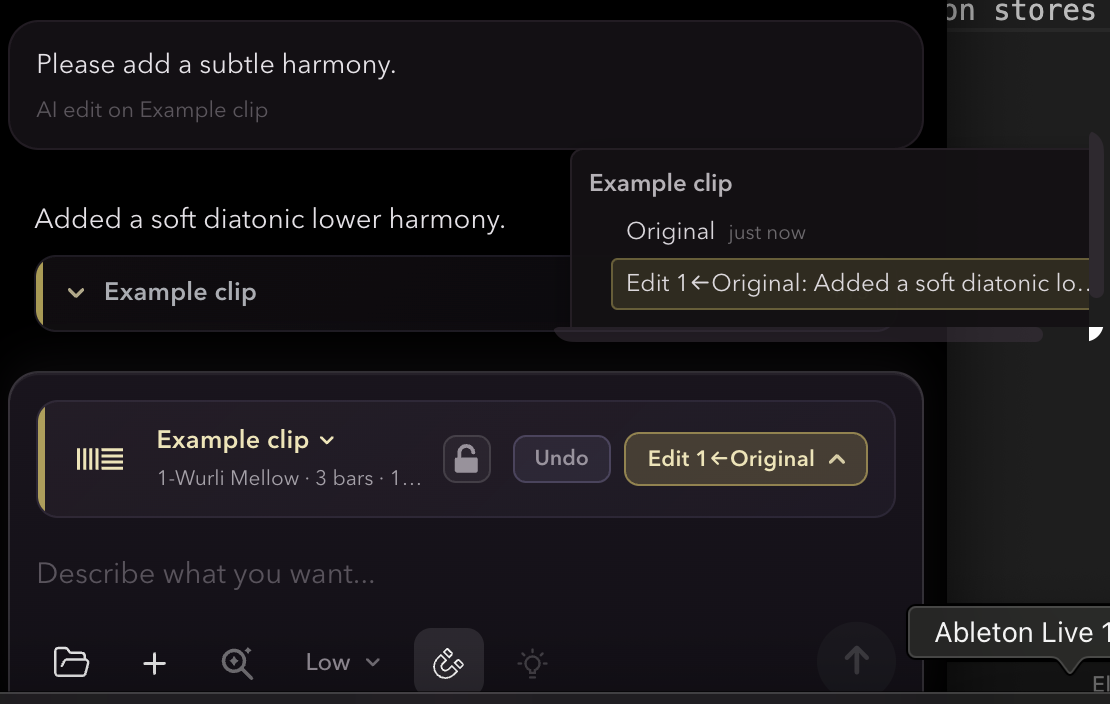
When we execute an edit, it creates an entry in the version menu. This section stores past versions of all edited clips so you can travel back and forth.
Logic Pro
How to use Texture with Logic Pro
Using Texture with Logic Pro is fairly straightforward. Since Logic support is brand new, the features are quite limited, we apologize.
Right now, Logic support is mainly kept to reading and writing MIDI, creating tracks and regions, and adjusting existing plugins.
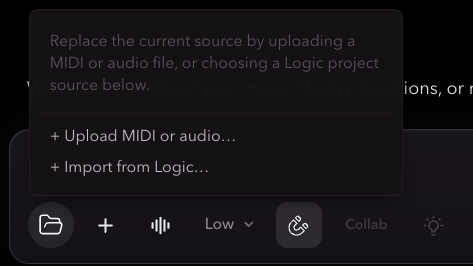
To get started, first pick a .logicx project from the source menu button on the bottom left corner.
The tracks and regions from your project will automatically appear in the menu. You can select a track or region to edit, or ask questions about it.
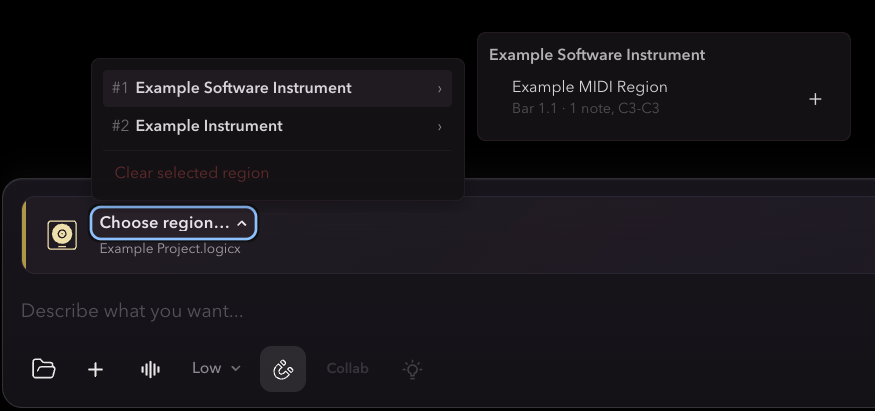
Once selected, the currently active region is shown in the bottom panel — Texture reads and writes from this region.
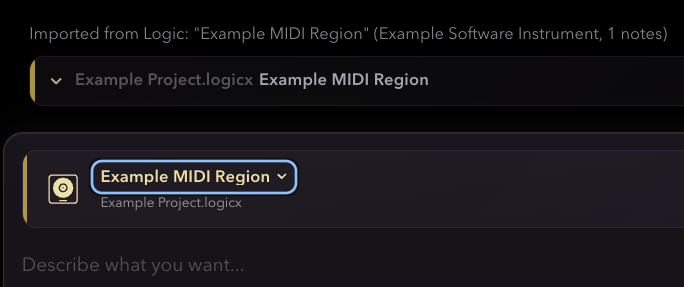
The app only loads regions that have at least one note in them.
Share feedback
Any feedback you have helps us improve the app! We are just 2 people now, so any bugs you catch, any ways the model could do better, or any features you'd like to see, please let us know at our email.
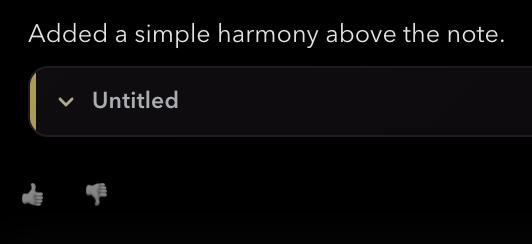
To rate a response or log a specific complaint, there are 2 feedback buttons below each response. We prefer that you log feedback here so we can improve responses.
Tips for getting the most out of Texture
Some early users have pointed out the following categories as their favorite uses of the app:
- Methodical requests (e.g. extending rhythmic patterns or adding parallel harmony)
- Vague requests (e.g. "make it more interesting" or "add some boominess")
- Seeing how the model will respond to abstract ideas (e.g. "Sparkle harmonies with glitter feel" or "Make it sound like if 3 crabs were fighting over a sandwhich")
Have fun with it! Here are some unique use cases:
- (My personal favorite)write terrible/messy music, then experiment and see how the model reacts (e.g. turn this awful melody into something exciting with an active bassline)
- Give it nonsensical instructions for writing music, then start a new conversation and ask it what's happening/fix it.
- Add a bad pattern and challenge it to make it even worse.
- Interpolate an existing popular song and ask what parts of it are the worst.